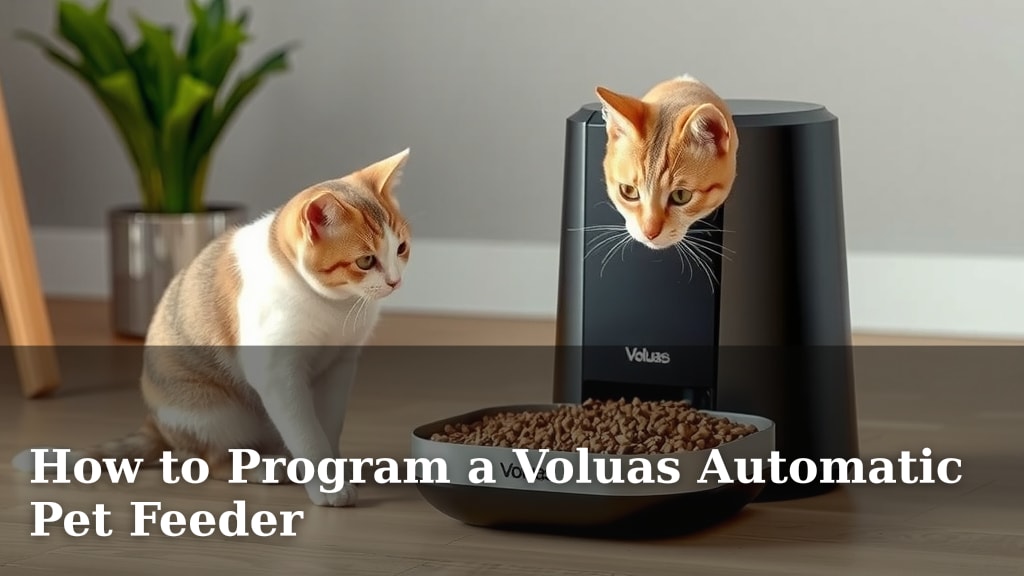
How to Program a Voluas Automatic Pet Feeder
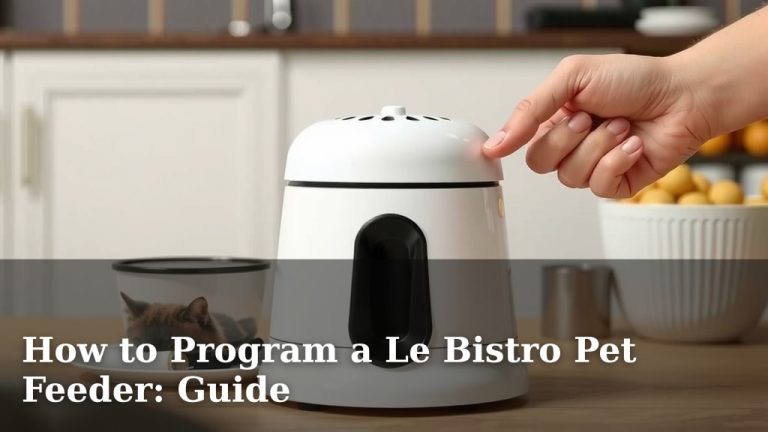
Programming your Voluas Automatic Pet Feeder is a straightforward process that ensures your furry friend is fed on time, every time. You can easily set up a custom feeding schedule by using the feeder’s built-in buttons or the dedicated mobile app for remote control and monitoring. This makes managing your pet’s diet simple, even when you’re away from home, providing peace of mind that your beloved pet won’t miss a meal.
This automated feeder is designed to take the guesswork out of pet care. It helps prevent overfeeding and underfeeding by dispensing pre-portioned meals. Many pet owners find that it significantly reduces their stress about feeding routines, especially during busy workdays or vacations. It’s a smart way to maintain your pet’s health and ensure they receive consistent nutrition.
TL;DR:
- Programming is simple via feeder buttons or mobile app.
- Set custom feeding schedules for your pet.
- Dispenses pre-portioned meals automatically.
- Prevents over or underfeeding.
- Great for busy owners or travel.
Ready to set up your Voluas feeder? Let’s walk through exactly how to program it step by step, so you can get back to enjoying time with your pet.
Setting Up Your Voluas Automatic Pet Feeder
Programming your Voluas Automatic Pet Feeder is simpler than you might think. You have two main ways to get it done. You can use the handy buttons directly on the feeder. Or, you can connect it to your smartphone via the app. We’ll walk you through both methods. This ensures your pet gets their meals right on schedule, no matter what. It’s all about convenience and consistency for your furry friend.
Getting Started: Power and Setup
Before you start programming, make sure your feeder is properly set up. You’ll need to plug it in using the provided power adapter. Some models also have a battery backup option. This is a great safety net. It ensures your pet is fed even if there’s a power outage. Place the feeder on a stable, level surface. Ensure the food storage bucket is clean and dry. Fill it with your pet’s favorite kibble. Make sure not to overfill it past the max line. This prevents jams and ensures smooth dispensing.
Programming Via the Feeder Buttons
Let’s dive into using the physical buttons on the feeder itself. This is a great method if you prefer to keep things simple. Or if your Wi-Fi is acting up. You’ll typically find a few buttons: Menu, Up, Down, and Set. These let you navigate and confirm your choices. It’s like using an old-school remote control. You’ll be setting the clock and then your feeding times.
Setting the Current Time
First things first, you need to tell the feeder what time it is. This is crucial for accurate meal scheduling. Look for a button labeled ‘Menu’ or ‘Set Time’. Press and hold it for a few seconds. You’ll likely see the hour digits start to flash. Use the ‘Up’ and ‘Down’ buttons to adjust the hour. Remember to pay attention to AM/PM. Once the hour is correct, press ‘Set’ again. Now the minute digits will flash. Repeat the process using ‘Up’ and ‘Down’ to set the minutes. Press ‘Set’ one last time to confirm. Your feeder now knows the current time.
Creating Your Feeding Schedule
Now for the fun part: setting up meal times! Navigate to the ‘Schedule’ or ‘Meal Plan’ option using your Menu button. You can typically set multiple meals per day. Let’s say you want to set the first meal for 7:00 AM. You’ll select the first meal slot. Then, use the Up/Down buttons to set the hour to 7. Press ‘Set’. Now set the minutes to 00. Press ‘Set’ again. The feeder will then ask you how much food to dispense. This is usually measured in portions.
Portion Control Explained
The Voluas feeder dispenses food in pre-set portions. A “portion” is a specific amount of kibble. It’s usually around 5-10 grams, but check your manual. You’ll use the Up/Down buttons to select the number of portions for each meal. For instance, if your pet eats 1/2 cup of food and one portion is 1/8 cup, you’d set 4 portions. Many experts suggest working with your veterinarian to determine the ideal portion size for your pet’s breed, age, and activity level (Cleveland Clinic). This helps prevent overfeeding and keeps your pet at a healthy weight.
Programming Via the Mobile App
For ultimate control and convenience, the Voluas mobile app is your best friend. It offers a more visual and intuitive way to manage your pet’s feeding schedule. You can even monitor food levels remotely!
Connecting Your Feeder to Wi-Fi
First, download the Voluas app from your smartphone’s app store. Create an account or log in. You’ll need to put your feeder into pairing mode. Usually, this involves pressing and holding a specific button (check your feeder’s manual for exact instructions). Once in pairing mode, open the app and select ‘Add Device’ or a similar option. Follow the on-screen prompts to connect your feeder to your home Wi-Fi network. You’ll likely need to enter your Wi-Fi password. Ensure your phone is connected to the same 2.4GHz Wi-Fi network the feeder will use. Some feeders may not support 5GHz networks.
Using the App Interface to Schedule Meals
Once connected, the app interface will feel much like using a smartphone calendar. You’ll see clear options to set meal times and portion sizes. Tap on ‘Meal Schedule’ or ‘Add Meal’. Select the desired time and day. Then, choose the number of portions from the easy-to-use slider or input field. You can often name each meal, like “Breakfast” or “Dinner”. The app also lets you adjust these settings anytime, anywhere. If your plans change, you can update the schedule from your office or even while on vacation. It’s like having a personal pet butler!
Advanced Features and Monitoring
Many Voluas app versions offer extra features. You might be able to set up manual feeding requests with a tap. This is perfect for giving your pet an extra treat. Some apps also provide feeding logs, so you can track when meals were dispensed. You may even get low-food notifications. This helps you remember to refill the storage bucket before it’s empty. Some models might even have a built-in camera. This lets you check in on your pet during meal times. It’s a fantastic way to ensure peace of mind.
Troubleshooting Common Issues
What if things don’t go as planned? Don’t worry, we’ve all been there. Most issues are easy to fix.
- Feeder Not Dispensing: Check if the food bucket is empty or jammed. Make sure the portion settings are correct. Ensure the feeder is plugged in and has power.
- Wi-Fi Connection Problems: Confirm your Wi-Fi is working. Try restarting your router and the feeder. Make sure you’re using a 2.4GHz network. Double-check your Wi-Fi password.
- App Not Syncing: Ensure your phone has a stable internet connection. Try closing and reopening the app. You might need to log out and back in.
Quick Checklist for Success
Here’s a quick rundown to ensure your Voluas feeder is programmed perfectly:
- Confirm feeder is powered on and batteries (if applicable) are installed.
- Set the correct current time on the feeder or in the app.
- Program your desired meal times accurately.
- Select the correct number of food portions for each meal.
- Test a manual feeding to confirm it dispenses properly.
- Keep the food bucket clean and refilled.
Conclusion
You’ve learned how to program your Voluas Automatic Pet Feeder, giving you the power to ensure your pet eats consistently, no matter your schedule. Whether you prefer the simplicity of the feeder’s buttons or the convenience of the mobile app, setting custom feeding times and portions is straightforward. This technology offers peace of mind, helping you manage your pet’s health and nutrition effectively. Now, take a moment to double-check your settings and enjoy the freedom that comes with automated feeding.
Frequently Asked Questions
How do I reset my Voluas pet feeder if I forget the Wi-Fi password?
To reset your Voluas pet feeder’s Wi-Fi settings, you typically need to press and hold a specific button on the device for about 10-15 seconds. This action will usually prompt the feeder to forget its current network and enter pairing mode again. Consult your feeder’s manual for the exact button and procedure for your model.
Can I program different portion sizes for different meals?
Yes, you generally can program different portion sizes for various meals. When setting up each meal in the app or on the feeder, you’ll be prompted to select the number of portions to dispense. This allows you to customize breakfast, lunch, and dinner according to your pet’s dietary needs.
What happens if the feeder loses power during a scheduled feeding?
Most Voluas feeders come with a battery backup option. If the feeder loses main power, the batteries will take over to ensure scheduled meals are still dispensed. It’s always a good idea to keep fresh batteries installed as a safety measure.
Is the Voluas app available for both iOS and Android devices?
Yes, the Voluas mobile app is typically available for both iOS and Android operating systems. You can find it by searching for “Voluas” in the Apple App Store or the Google Play Store.
How do I know if my pet is getting too much or too little food?
Closely monitor your pet’s weight and energy levels. Consult your veterinarian to determine the ideal daily caloric intake and portion size for your specific pet. The feeder dispenses portions, but you control the portion size and the number of portions per meal based on professional advice.