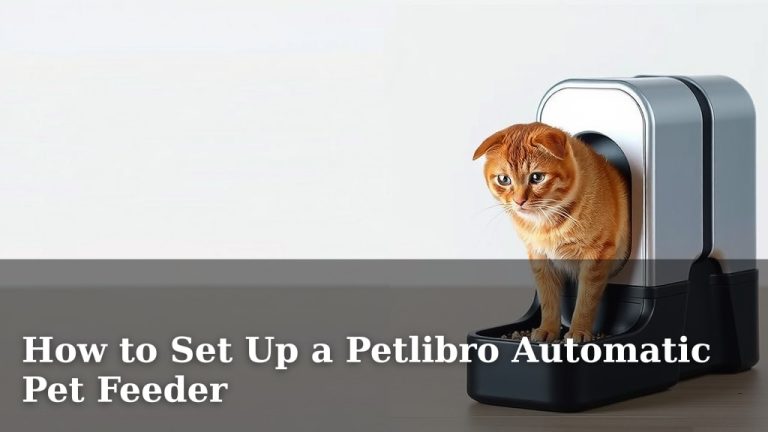
How to Set Up a WoPet Automatic Pet Feeder
Setting up your WoPet automatic pet feeder is surprisingly simple, even if you’re not super tech-savvy. You can get your furry friend on a consistent feeding schedule in just a few easy steps. Don’t worry, we’ll guide you through connecting it to Wi-Fi and programming your first meal.
Many pet parents find automated feeders a lifesaver for busy schedules. A WoPet feeder helps ensure your pet eats on time, every time. This can be especially helpful for pets on special diets or those who need portion control to maintain a healthy weight.
- Connect your feeder to your home Wi-Fi.
- Download and set up the WoPet app.
- Program your pet’s meal times and portion sizes.
- Ensure the feeder is securely assembled.
Ready to simplify feeding time? Let’s walk through exactly how to set up your WoPet automatic pet feeder together, step by step.
Getting Your WoPet Feeder Ready to Go
Setting up your new WoPet automatic pet feeder might seem daunting, but we’ve found it’s quite straightforward. You’ll have your furry friend enjoying their perfectly portioned meals on time very soon. We’ll walk you through each step, so you can relax knowing mealtime is covered.
Unboxing and Assembly: The First Steps
First things first, let’s get everything out of the box. You’ll typically find the feeder base, the food container, the food bowl, and a power adapter. Make sure you have all the parts. It’s good to give the food container and bowl a quick wash before use. We recommend using mild soap and water, then drying them thoroughly.
Assembling the Feeder Base
Attaching the food bowl is usually simple. It often just slides or clicks into place at the front of the feeder base. Ensure it’s secure; you don’t want any early surprises during mealtime! A wobbly bowl is a recipe for spilled kibble, and that’s no fun for anyone.
Loading the Food Container
Next, we’ll fill the food container. Most WoPet models have a clear, large capacity container. Simply lift the lid and pour in your pet’s favorite kibble. Be sure not to overfill it. Check the markings on the container, if any, to avoid packing it too tightly. We found that loosely filling it helps prevent jams.
Connecting to Your Wi-Fi Network
This is where your feeder gets smart! Connecting to your home Wi-Fi allows you to control and monitor feeding from your smartphone. This step is essential for all the automatic features. Don’t worry if you’re not a tech whiz; WoPet makes this process pretty user-friendly.
Downloading the WoPet App
You’ll need to download the official WoPet app from your smartphone’s app store. Search for “WoPet” in the Apple App Store or Google Play Store. Once you find it, tap “Install.” It’s a free app, so no worries about hidden costs there. Make sure you have a stable internet connection on your phone during this download.
Creating Your Account and Adding Your Feeder
Open the WoPet app. You’ll likely need to create a new account using your email address. Follow the on-screen prompts to set up your profile. Once your account is ready, look for an option to “Add Device” or a plus (+) icon. Tap that to begin adding your feeder.
Putting the Feeder in Pairing Mode
Your feeder needs to be in “pairing mode” to connect to your Wi-Fi. This often involves pressing and holding a specific button on the feeder itself. The app will guide you, but usually, you’ll see an indicator light start blinking. This blinking light tells you the feeder is ready to be discovered by the app. We found that reading the feeder’s own quick start guide can be helpful here too.
Entering Your Wi-Fi Credentials
The app will ask you to select your home Wi-Fi network from a list. You’ll then need to enter your Wi-Fi password. Double-check that you’ve typed it correctly. Even a single typo can prevent the connection. Once entered, the app will try to connect your feeder to your network. This might take a minute or two. Patience is key!
Programming Your Pet’s Meals: The Fun Part!
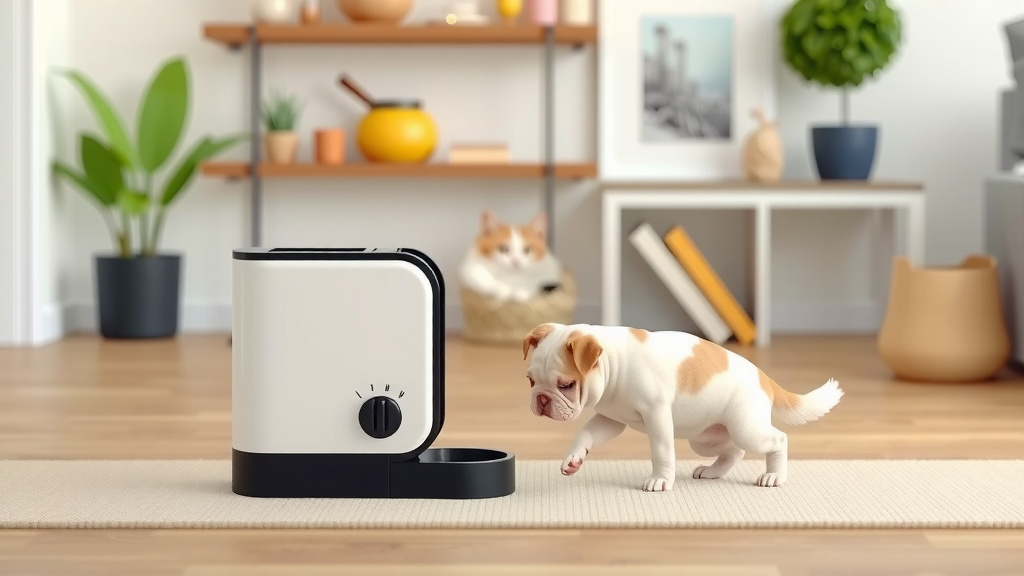
Now for the core function: telling the feeder when and how much to feed your pet. This is where the real convenience comes in. You can set up a schedule that fits your life and your pet’s needs. Many pet nutritionists recommend consistent feeding times for better digestion (American Animal Hospital Association).
Setting Meal Times
Within the WoPet app, navigate to the feeding schedule section. You can typically add multiple meals throughout the day. For example, you might set a breakfast time, a lunch time, and a dinner time. Decide what works best for your pet’s routine. Consistency is often the goal here.
Determining Portion Sizes
This is a critical step for your pet’s health. The app will let you specify the portion size for each meal. WoPet feeders usually measure portions in small increments, like tablespoons or specific units. You’ll need to figure out the right amount for your pet. Your veterinarian is the best resource for determining the ideal portion size based on your pet’s age, weight, and activity level. We found that starting with a slightly smaller portion and adjusting is often a good strategy.
Manual Feeding Option
Most models also have a “manual feed” button within the app. This lets you give your pet an extra treat or an immediate meal outside of the programmed schedule. It’s a handy feature for those unexpected moments or when you just want to spoil your furry friend a little.
Final Checks and Best Practices
Before you declare victory, a few final checks will ensure everything runs smoothly. These little things can prevent big headaches down the line.
Testing the Feeder
It’s a great idea to do a test run. You can set a meal for just a few minutes in the future. Watch to make sure the feeder dispenses the correct portion size. Check that the bowl is positioned correctly to catch the food. This initial test helps you catch any issues early.
Ensuring Secure Assembly
Just a quick reminder to double-check that the food bowl is firmly attached. Also, ensure the lid on the food container is secure. You don’t want your pet figuring out how to get into the food storage and having an all-you-can-eat buffet!
Power Source Reliability
WoPet feeders typically come with a power adapter. We also found that many models include a battery backup option. It’s wise to install fresh batteries, even if you primarily use the AC adapter. This ensures your pet won’t miss a meal if there’s a power outage. Power reliability is super important for an automatic feeder.
Quick Setup Checklist
- Assemble the feeder base and attach the bowl securely.
- Wash and dry the food container and bowl.
- Load the feeder with your pet’s kibble.
- Download the WoPet app and create an account.
- Connect the feeder to your home Wi-Fi network.
- Program your first meal time and portion size.
Conclusion
You’ve successfully navigated the setup of your WoPet automatic pet feeder! We walked through assembly, Wi-Fi connection, and programming meals. Now your pet can enjoy consistent feeding, helping with portion control and a healthy weight. This automated system offers peace of mind for your busy life. Your next step is to monitor your pet’s initial meals and adjust portion sizes as needed. Enjoy the convenience and the happy, well-fed wag of your furry friend!
Frequently Asked Questions
What if my WoPet feeder doesn’t connect to Wi-Fi?
Double-check your Wi-Fi password for typos, as this is a common issue. Ensure your feeder is within range of your router and that you’re connecting to a 2.4GHz network, as many smart devices don’t support 5GHz. You may need to restart both your router and the feeder.
How do I clean the WoPet automatic feeder?
We recommend washing the food bowl and container with mild soap and warm water after each use. Ensure all parts are completely dry before reassembling to prevent mold or bacterial growth. Wipe down the main feeder unit with a damp cloth, avoiding the electronic components.
Can I use any type of dry pet food with the WoPet feeder?
WoPet feeders are designed for standard dry kibble. We found that the size and shape of the kibble can affect dispensing. Very small or unusually shaped kibble might occasionally jam. It’s best to use kibble within the recommended size range specified in your feeder’s manual.
What happens if the power goes out?
Many WoPet models have a battery backup feature. We strongly advise installing fresh batteries when you set up the feeder. This ensures your pet won’t miss a meal during a power outage. The feeder will automatically switch to battery power if the AC adapter loses power.
How do I update the feeding schedule if my pet’s needs change?
You can easily update your pet’s feeding schedule directly through the WoPet app. Simply log in, navigate to the feeding schedule settings, and adjust the meal times or portion sizes as needed. The changes typically take effect immediately or after the next scheduled feeding.